Once the candidate has completed the application form and provided documents that meet your requirements, you can pull them through for referencing.
Go Actions > Start Referencing
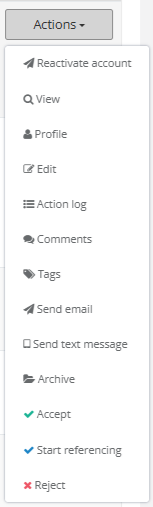
This will then show you a list of your current projects in date order. Scroll to find the project you want to reference the candidate under, or use the Search for project box at the top. The Project Date, Job title, Employer, Location/Ruleset and Notes headers can also be filtered alphabetically:


You will then see some details to be completed for the Reference Details.
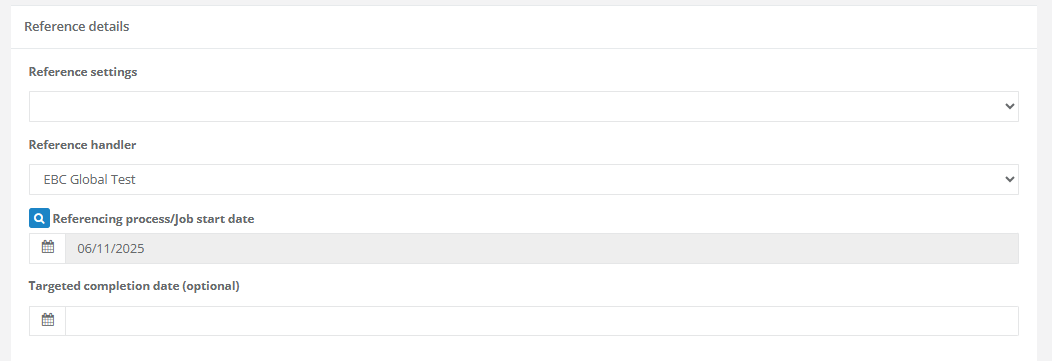
Choose the appropriate reference setting (this will govern which check boxes are created on the file, the screening period, gap length, and reference types [PDF or Electronic]).
Select the Reference handler (this will default to your user but can be amended). You can enter a Targeted completion date if required.
Below this section, the tabs of the Employee Profile will show. This gives you the opportunity to review and/or edit those details before pulling the candidate through and creating their vetting file.
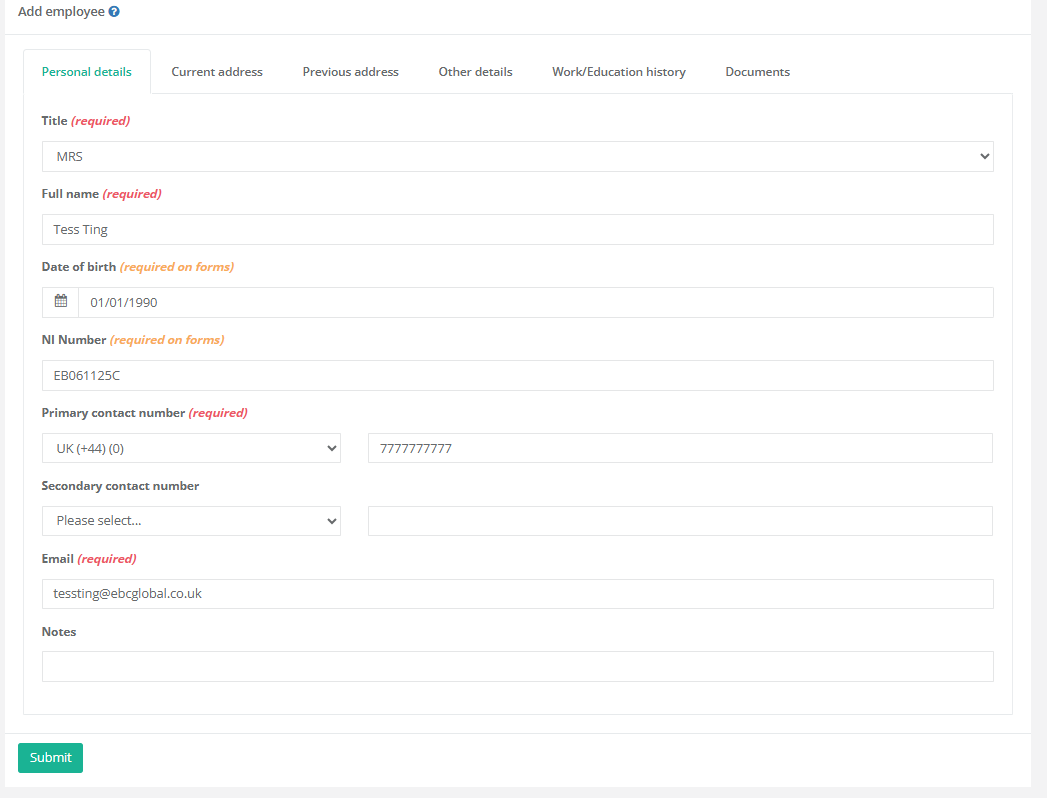
Once you are happy with all of the information, press Submit to create the candidate's vetting file!

Was this article helpful?
That’s Great!
Thank you for your feedback
Sorry! We couldn't be helpful
Thank you for your feedback
Feedback sent
We appreciate your effort and will try to fix the article