After reviewing the application form, you may find that the candidate has made a mistake, omitted some information, or there is an issue with their documents.
In this case, you should reject the application back to them, so they can log back in and make changes or upload further documents as needed.
This is easily handled from the Applications screen.
Locate the candidates file, then go Actions > Reject.
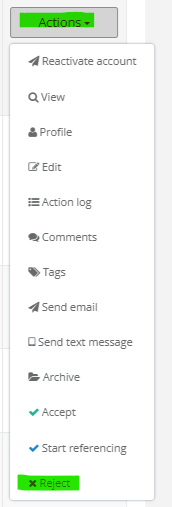
This will open up an additional window, asking you to provide a reason for rejection. Enter the reason(s) that you are rejecting the form, and explain to the candidate what needs to be updated or changed, for example:
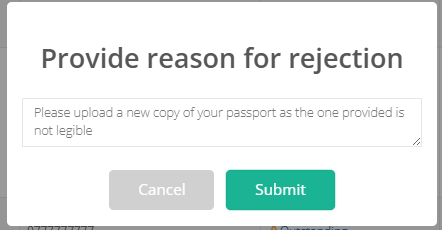
The reason entered here will be sent to the candidate in an email, asking them to log back in to their portal.

The status in the application will show as Rejected, until the candidate has logged back in and resubmitted their form, at which point it will change back to New.
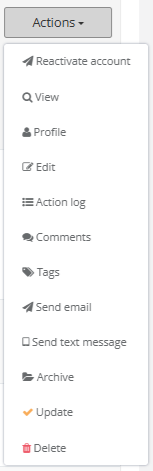
You can always use the Actions > Edit to update the details on behalf of the candidate, or make amendments in their Employee Profile. If you need to change the status back to NEW whilst in Rejected, you can do this by choosing Actions > Update:
Was this article helpful?
That’s Great!
Thank you for your feedback
Sorry! We couldn't be helpful
Thank you for your feedback
Feedback sent
We appreciate your effort and will try to fix the article