Go to Other > Applications:
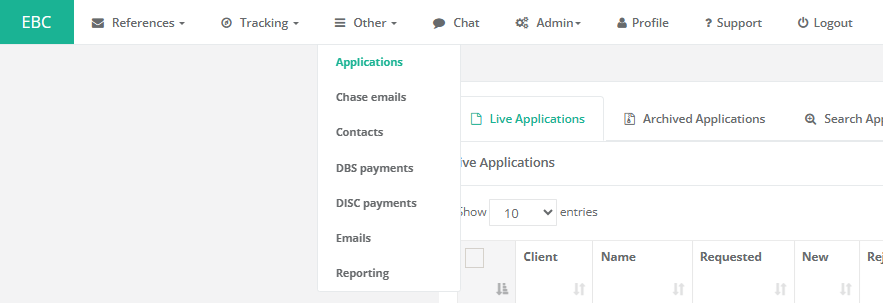
You will then see a list of your current applications. Click the name of the application to view the candidates within, and to send new requests.
Scroll to the bottom of the list, and you will find a blue Send Request button:
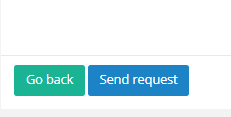
Click on this to open up the request window.
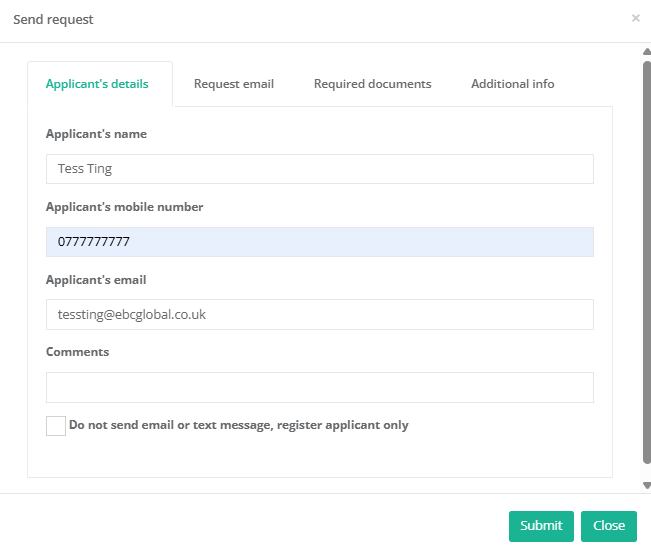
Enter your candidate's name, mobile phone number and email address. Mobile phone number is mandatory, and if this is not provided, the request email will not be sent. At this point you can click Submit to send the standard request, or if you click on the Request Email tab, you can customise the email that is sent to the candidate asking them to Register and complete the application form:
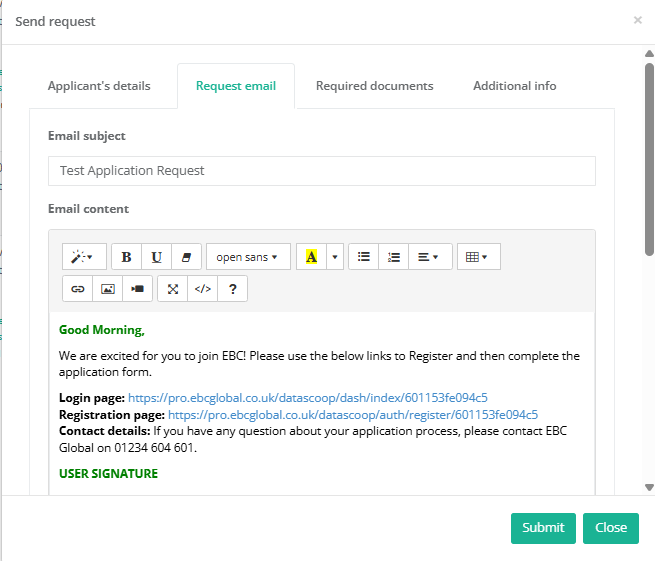
Once you are happy with all of the details, press the Submit button and the application request will be emailed to the candidate. They will also receive a text message asking them to check their emails and complete their registration.
Was this article helpful?
That’s Great!
Thank you for your feedback
Sorry! We couldn't be helpful
Thank you for your feedback
Feedback sent
We appreciate your effort and will try to fix the article